Creating a new individual client
Welcome to the guide on creating a new individual client record in ClientManager Financial Planning CRM.
Go to financial-planning.co.za
1. Introduction
This guide will show you how to create a new individual client record in ClientManager. Before we begin, it's essential to understand the difference between the client types within the CRM:
-
Natural Person: Choose this option when you are creating a client who is an individual, such as an individual investor or policyholder. You will provide personal details for this type of client.
-
Juristic Person: Select this option when you are creating a client that represents an organization, corporation, or legal entity, like a business or company. You will provide information about the entity and its representatives.
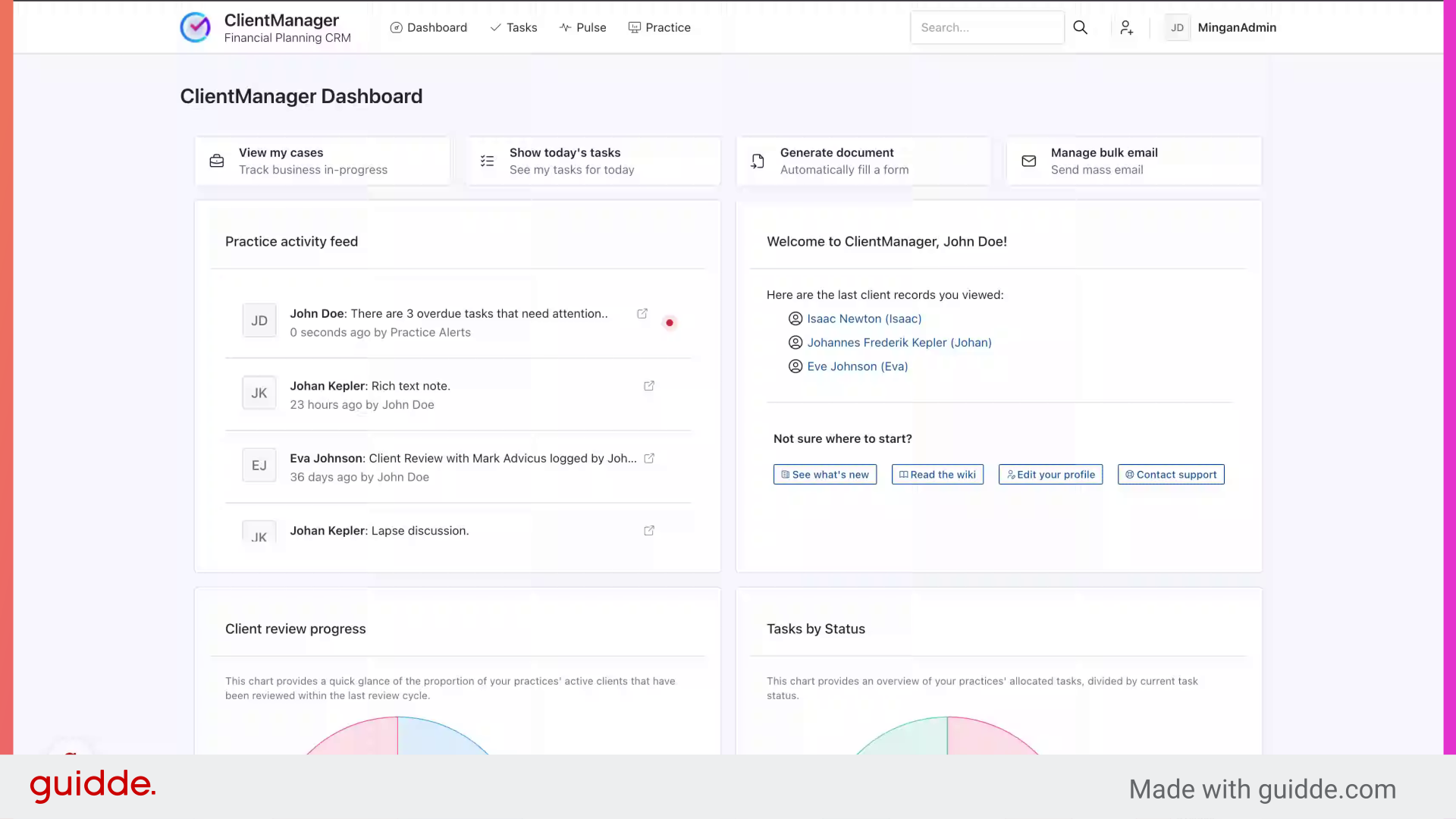
2. Click the 'new client' button
Click the "new client" icon in the top right of your screen from any page within the CRM.
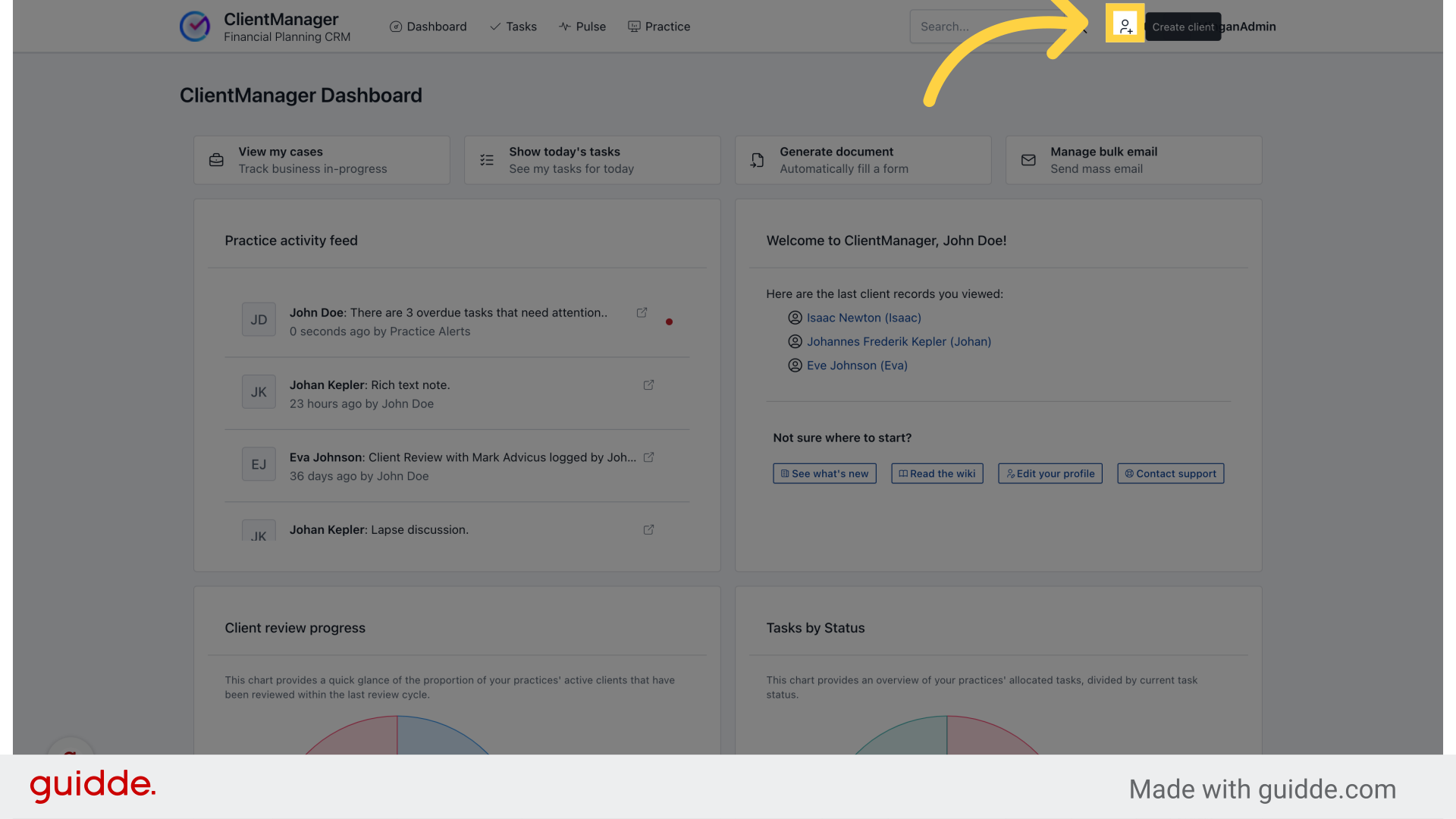
3. Complete the mandatory fields
Mandatory (required) fields are indicated by a *. The following fields are required:
-
Title
-
Initials
-
Full name
-
Last name
-
Nickname
-
Nationality
-
Gender
-
Language
-
Review month
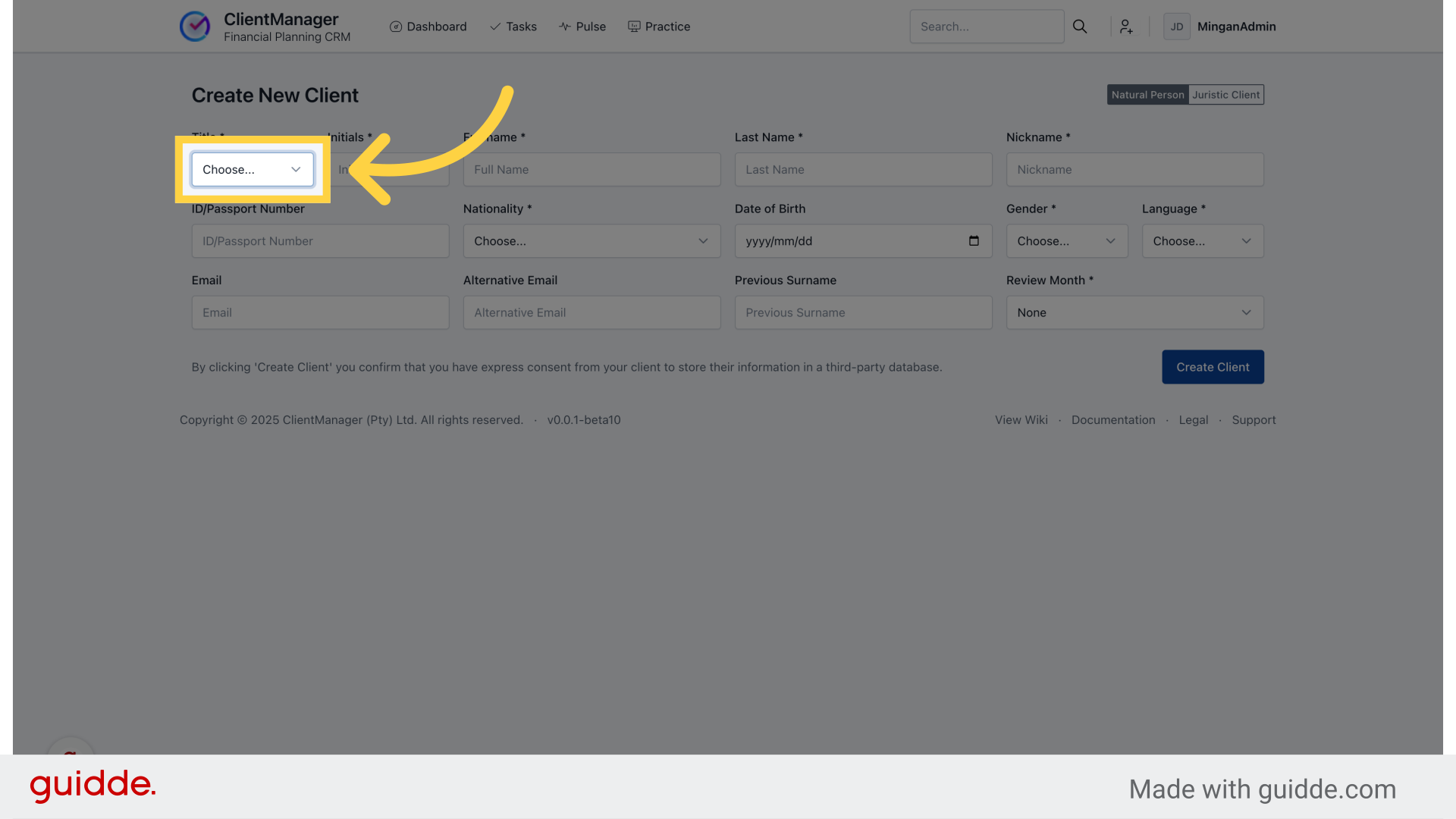
4. Choose a review month
Choose the month in which you'd like to be reminded to review the client each year. You can also create recurring tasks for more frequent reviews if you'd like later.
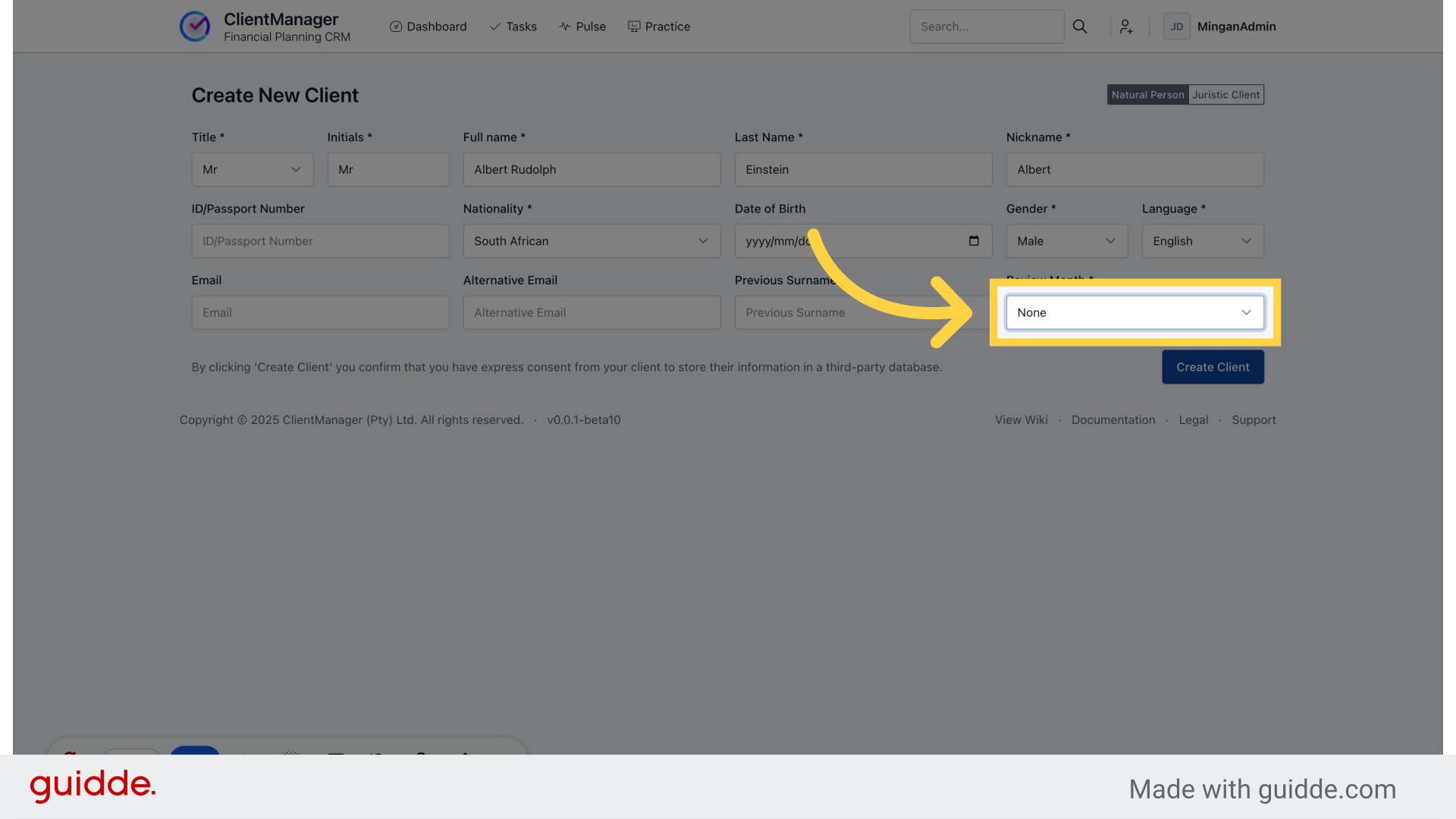
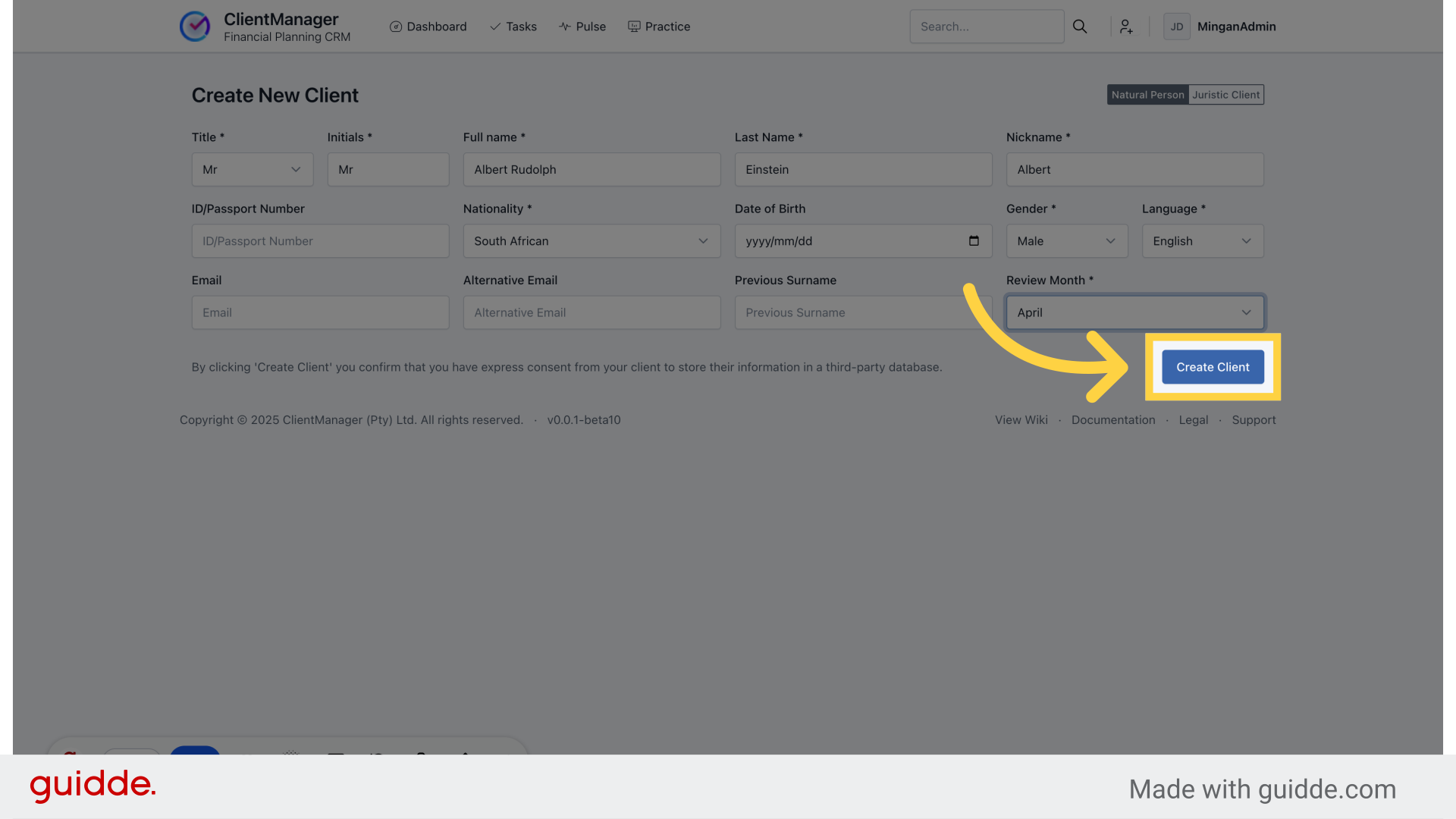
5. Click "Create Client"
Once you have provided the necessary information, click the 'Create Client' button.
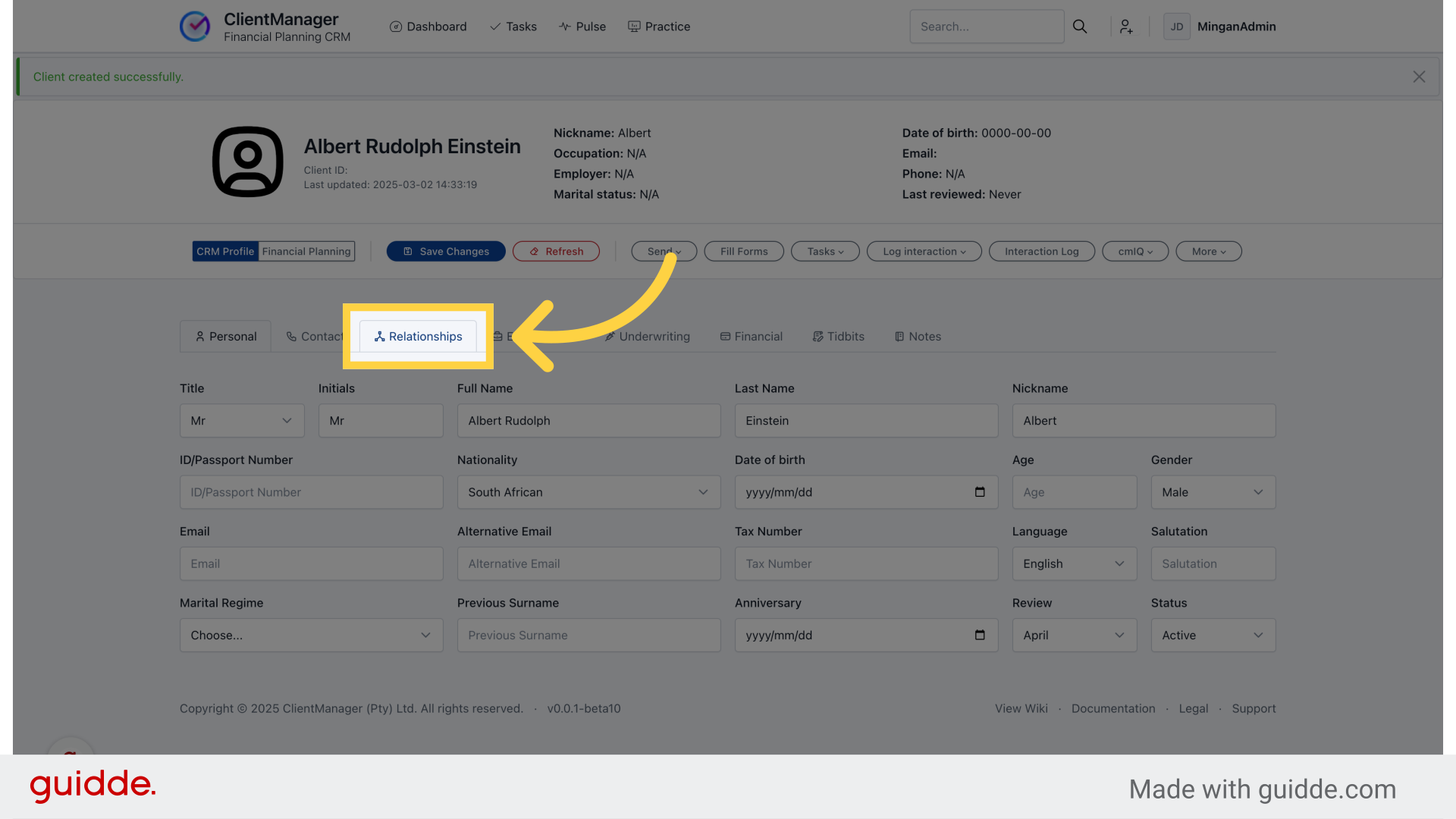
6. Link a financial adviser
It's normally a good idea to link a financial adviser to a client directly after creating the record. You can do this by navigating to the 'Relationships' tab in their profile.
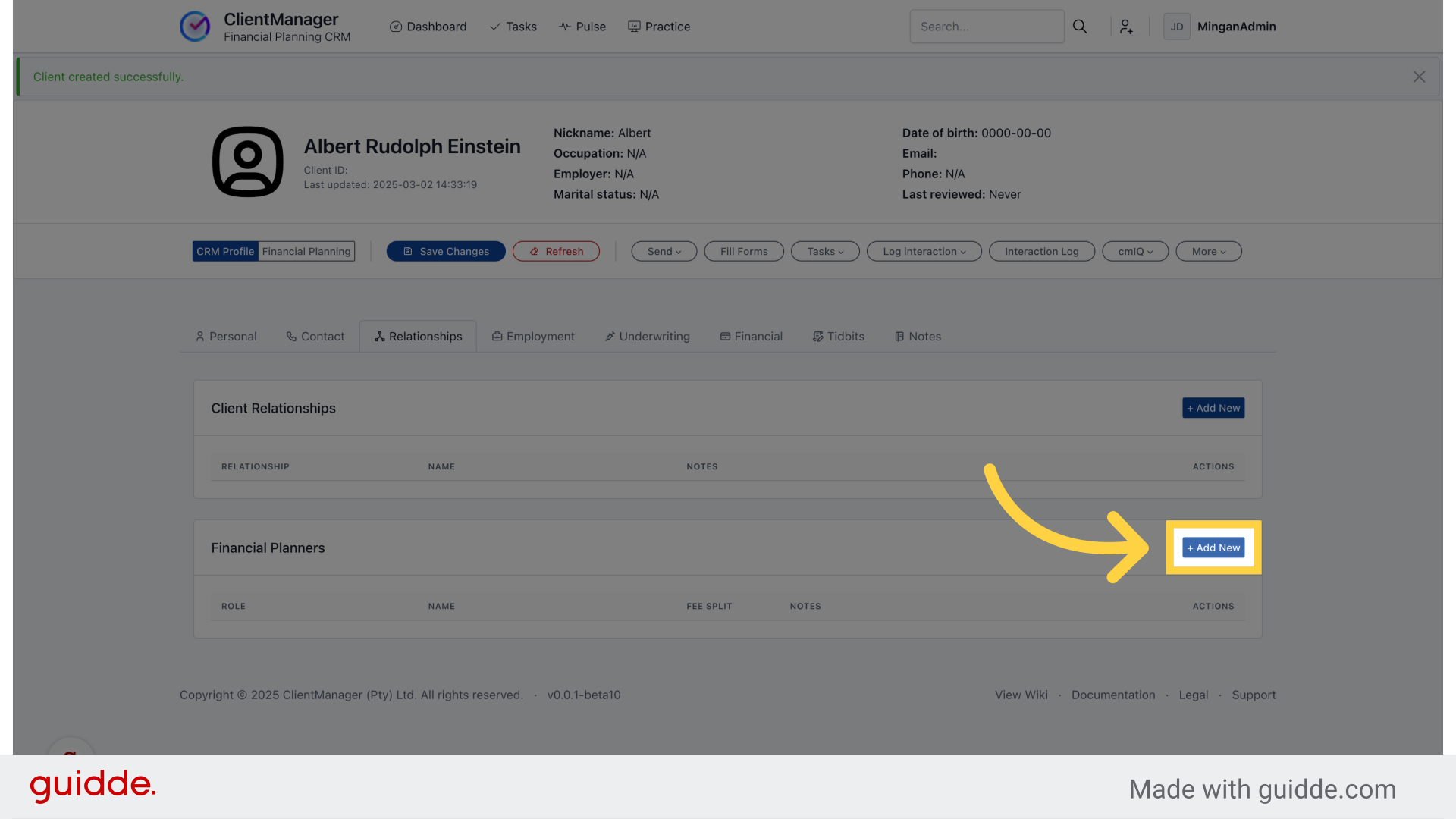
7. Click "+ Add New"
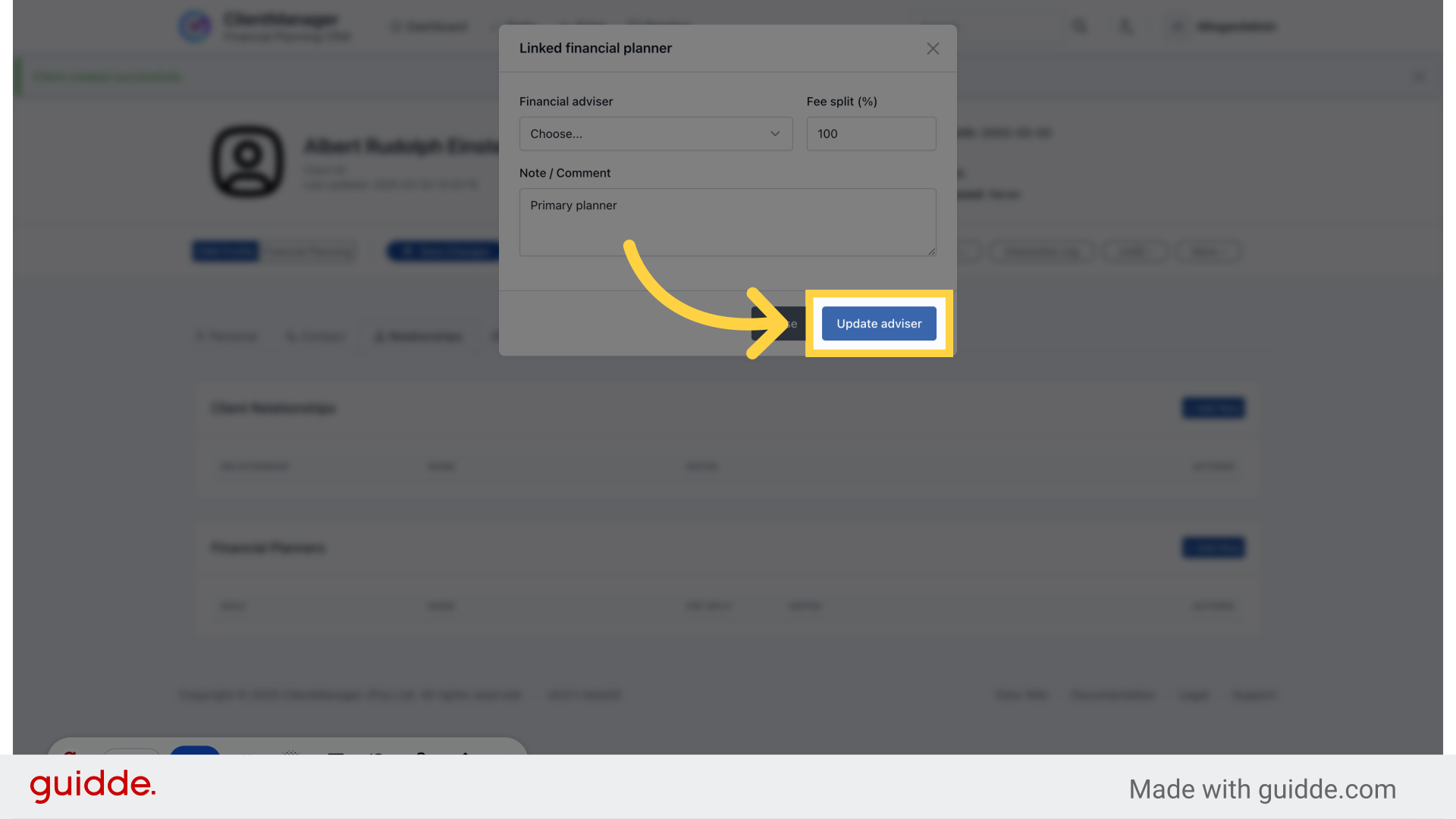
8. Choose an adviser, add a comment, and click "Update adviser"
Choose the adviser to link to your client. If the person your looking for doesn't appear in the dropdown, they may not be marked as an adviser in your practice settings.
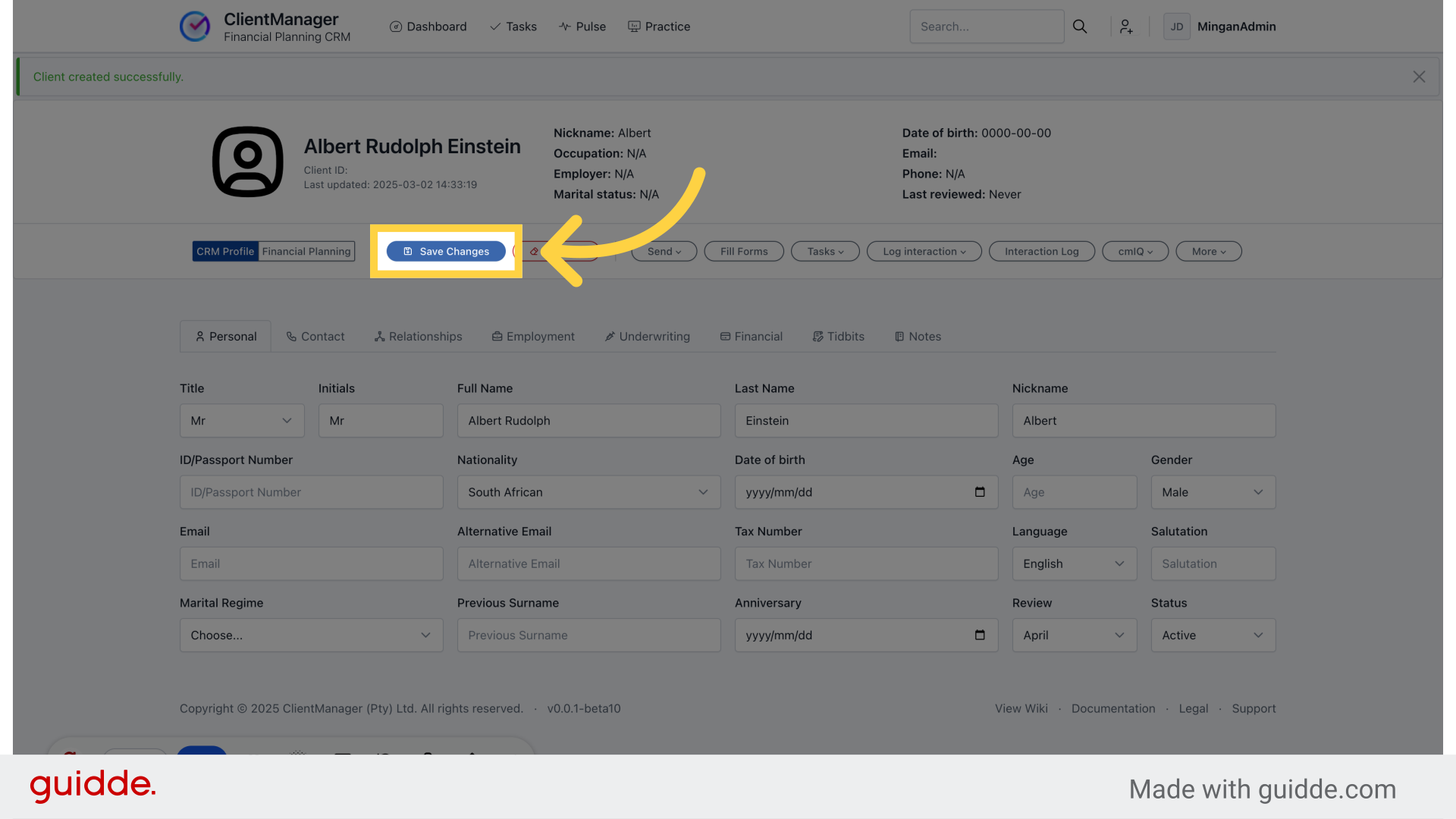
9. Click "Save Changes"
You can edit any other fields you'd like, and click 'save'.
This guide covered the process of creating a new individual client record in ClientManager and linking a financial adviser to their profile.