CRM Dashboard
Understanding Your ClientManager Dashboard
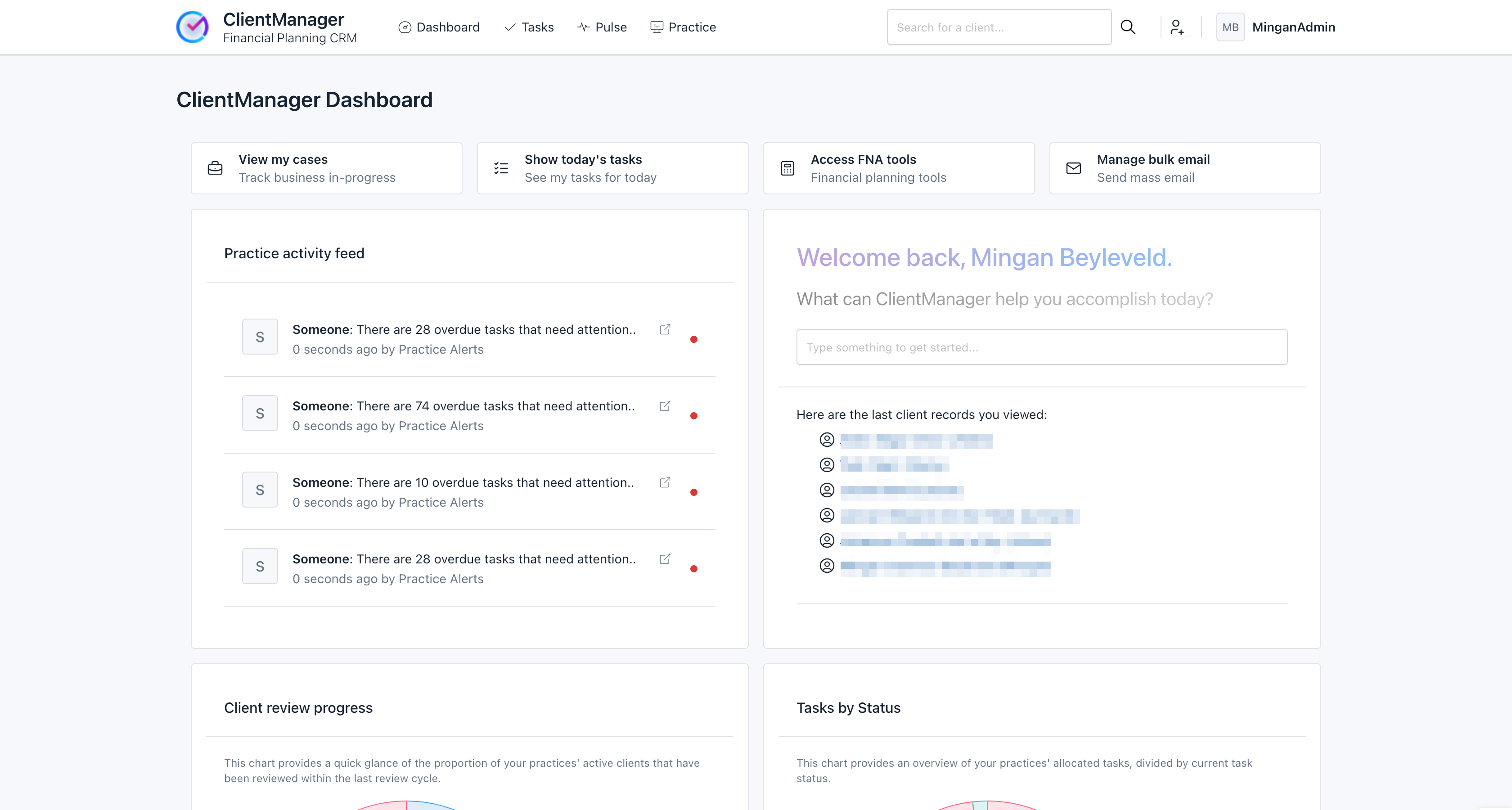
The ClientManager Dashboard is your go-to landing page when you log in, giving you a quick overview of what's happening and where you need to focus your attention. It's designed to help you jump straight into the most important tasks and information.
What's on Your Dashboard?
You'll find several key sections on your dashboard, each providing a different angle on your practice's activity:
Top Quick Buttons

These handy buttons at the top of the dashboard let you quickly navigate to common tasks:
- View my cases: Takes you directly to the case tracker, showing all your in-progress business.
- Show today's tasks: A quick way to see everything you need to get done today.
- Access FNA Tools: Dive straight into the Financial Needs Analysis tools.
- Manage bulk email: For when you need to send out communications to multiple clients.
Practice Activity Feed
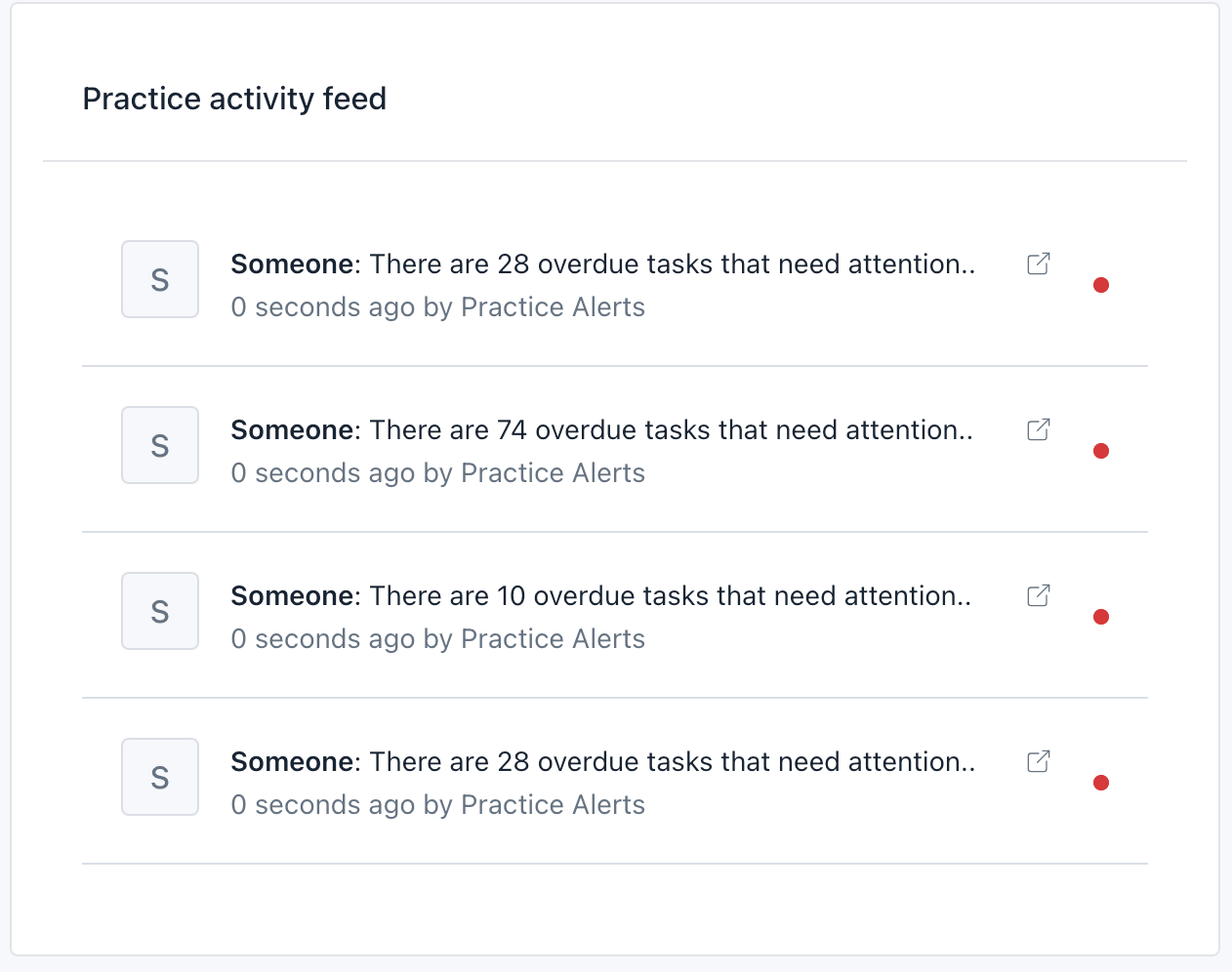
This section keeps you updated with a real-time stream of what's going on across your practice. You'll see things like:
- Alerts about overdue tasks from different team members.
- Notifications about tasks completed or interactions your team has had with clients.
It's a great way to stay in the loop and see what your colleagues are working on.
"What can ClientManager help you accomplish today?" Search Bar
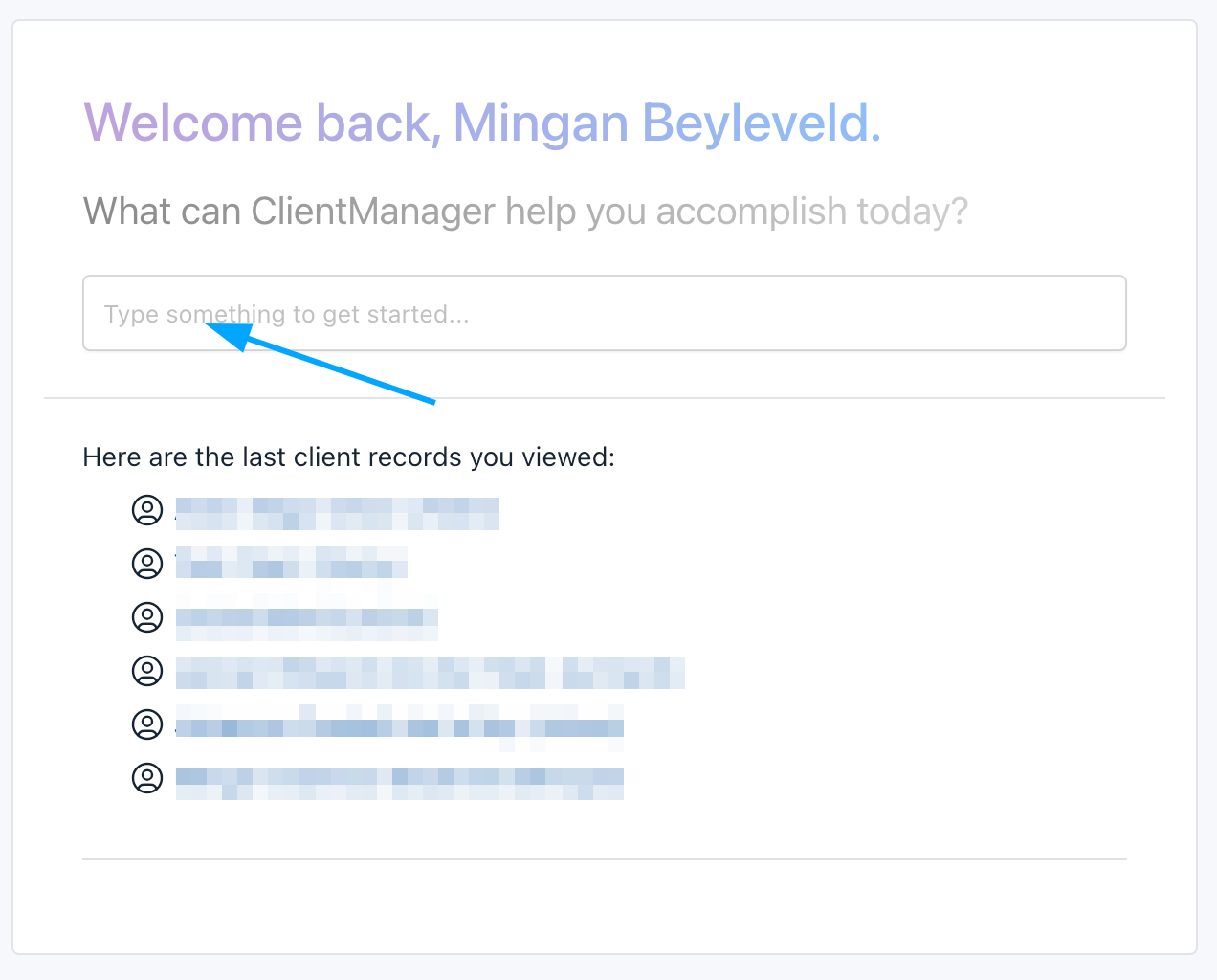
Think of this as your personal shortcut. If you know what you want to do but aren't sure where to find it, just type it into this search bar. For instance, you could search for:
- 'Create an education planning illustration'
- 'Get a list of clients not yet reviewed'
ClientManager will then help you navigate directly to that feature.